Course FAQs
Here are answers to the most common questions I get about my courses.
If you don’t see what you’re looking for, you can always contact me.
Using Your Account
Podia (the shopping cart platform used on Tonia Knits) automatically creates customer accounts the first time you make a purchase.
For further information, here is a Customer Guide for using Podia.
Your product purchases will also be saved in a dashboard so you can access them at any time.
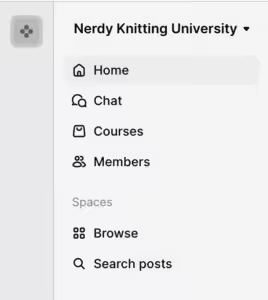
To get to your dashboard:
– Go to nerdyknitting.podia.com, click Login or (Click Here)
-Sign in using the email address you used when you purchased.
Once you’re logged in, you’ll see your dashboard.
Important:
Do not log in at app.podia.com. That area is for site administration only and will not work for course access.
Once you’re logged in, click on the circle with your initial (or profile picture) at the bottom left hand side and select , ACCOUNT
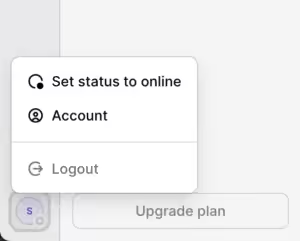
From there, you can: Edit your Email address, password, language, timezone, security, profile, and notification settings
If you forget your password then it’s a simple process to reset and access your customer dashboard. Go to the Reset Password page here and follow the instructions.
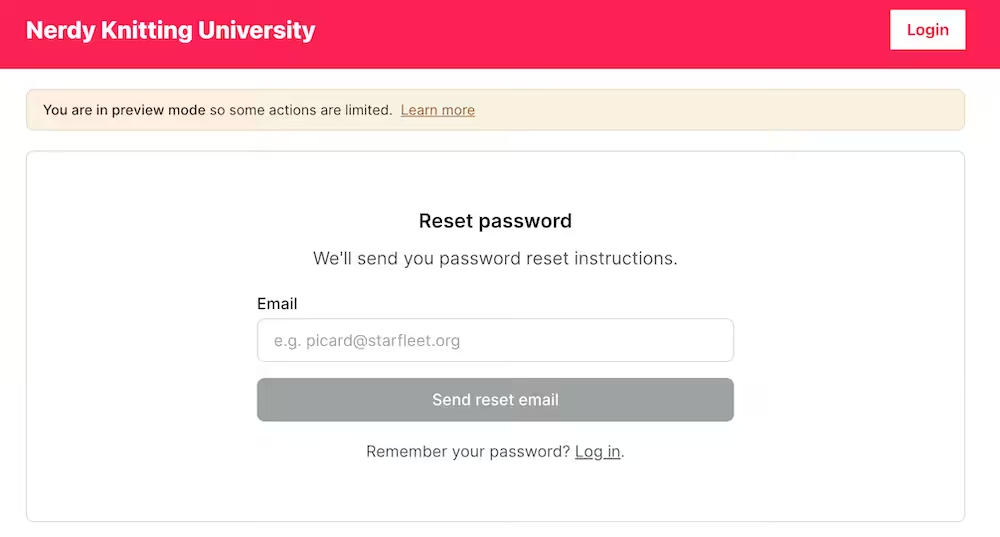
Enter the email address you used to create your account and click ‘Send reset email’ to receive an email that will guide you through the process of resetting your password.
Sometimes people leave the page before finishing the account setup after checkout. If that happens, you won’t be able to log in yet.
-Check your email for a message asking you to finish setting up your account or create a password.
If you don’t see it, you can email for help and we can resend the setup email.
Once you’re logged in to your dashboard:
-Click the circle with your initials or profile photo in the bottom left corner.
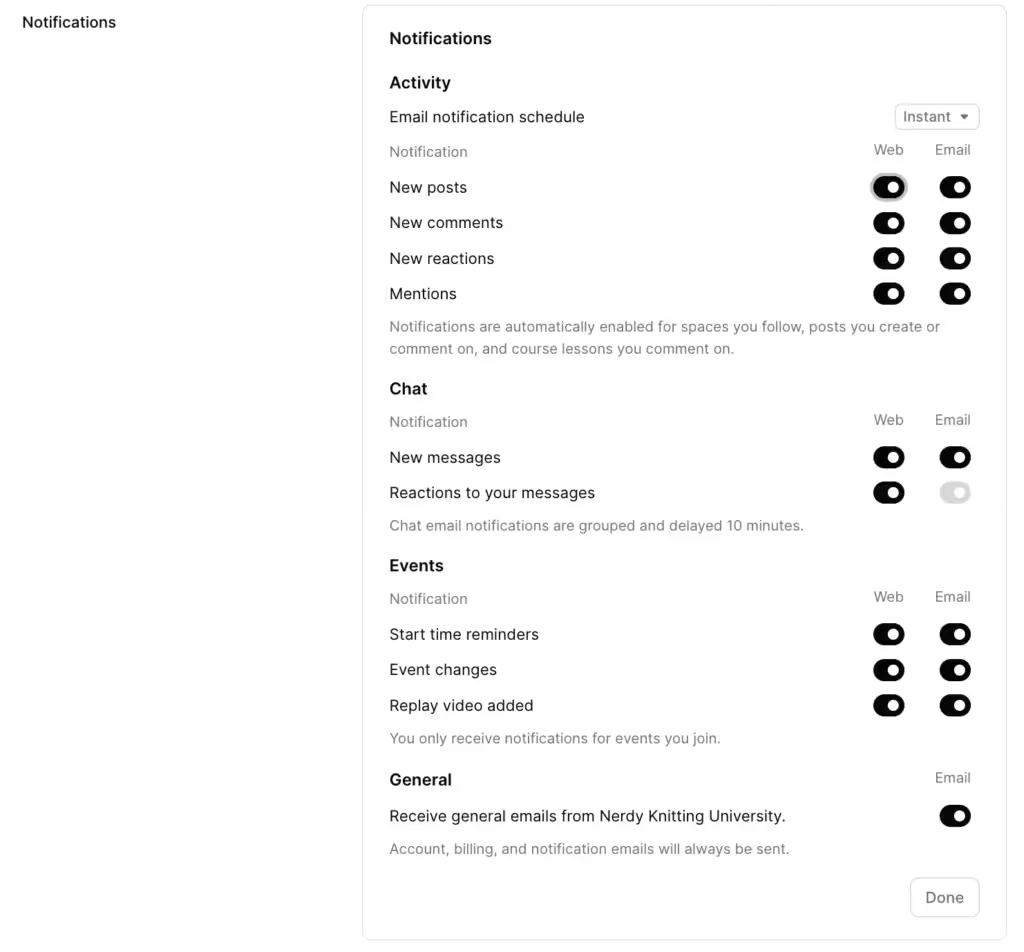
-Click Account, then Notifications.
-Toggle web and email notifications on or off for posts, comments, reactions, mentions, chat messages, and event reminders.
-Use the Email notification schedule dropdown to choose how quickly notification emails arrive.
-Click Done when you’re finished.
If you’d like to cancel a paid subscription (like the Nerdy Knitting Society):
-Log in to your customer account.
-Click your profile picture and select Settings.
-Scroll down to the Billing section.
-Find your subscription and click Cancel plan.
-Confirm the cancellation in the pop-up window.
You’ll keep access until the end of your current billing period.
For a step-by-step guide with screenshots, see Podia’s help article here: https://help.podia.com/en/articles/11370985-how-do-i-cancel-my-active-subscription
Having trouble? Send an email to toniaknitspatterns@gmail.com and I’ll take care of it for you.
-Log in to your customer account.
-Click your profile picture and select Settings.
-Scroll down to the Billing section.
-Click Switch to yearly next to your subscription.
-Review the billing details shown, then confirm the switch.
Prefer I handle it? Send an email to toniaknitspatterns@gmail.com and I’ll switch it over from my end.
All courses now live on Podia at https://nerdyknitting.podia.com. If you purchased on our previous platform (Payhip), your course access was transferred over using the same email address you purchased with.
To log in for the first time:
-Go to https://nerdyknitting.podia.com and click Login.
-Use the password reset option above the login box to set a password for your email address.
-Log in, and your course will be waiting in your dashboard.
Please note that some course names have been updated along the way, for example Fix Your Knitting Mistakes is now Fix Your Knits.)
Still not seeing your course?
-Send an email to hello@toniaknits.com with the email address you used at purchase, and a copy of your receipt if you have it, and we’ll get you sorted.
For any additional help please visit Podia’s FAQ page.

Course Platform
Your dashboard is the main place where everything you’ve purchased lives. From there you can:
-See all the courses you’re enrolled in
-Open any course to watch lessons
-Access the community (if included)
-Manage your account details
You don’t need to “set it up.” It’s created automatically when you sign up or make a purchase.
When you purchase a course:
-You’ll create an account or log in during checkout
-You’ll see a confirmation screen after payment
-You’ll get an email with access details
-You’ll be able to start watching lessons right away
All your courses will stay in the same account, even if you purchase more later.
After logging in, click Courses in the dashboard
You’ll see a list of all the courses you’re enrolled in.
To open a course:
-Click the course name
-The lessons will open in the course viewer
-You can watch any of your course lessons from there
You’ll have ongoing access, so you can come back to the lessons whenever you need a refresher.
The courses are hosted on Podia, a secure online learning platform that keeps everything in one place and easy to access.
This usually means you’re logged in with a different email address than the one you used to purchase.
-Try logging out and signing in again using the email address from your purchase confirmation email.
-If you’re not sure which email you used, check your inbox for the receipt or confirmation message.
If it still doesn’t show up, you can email for help and we’ll look it up.
The courses are primarily video-based, with clear explanations and demonstrations. Some lessons may include additional notes or resources.
No. The courses are self-paced. You can go through the lessons on your own schedule.
Yes. The courses are set up to be simple and straightforward. If you can click a link and watch a video, you’ll be able to use the course.
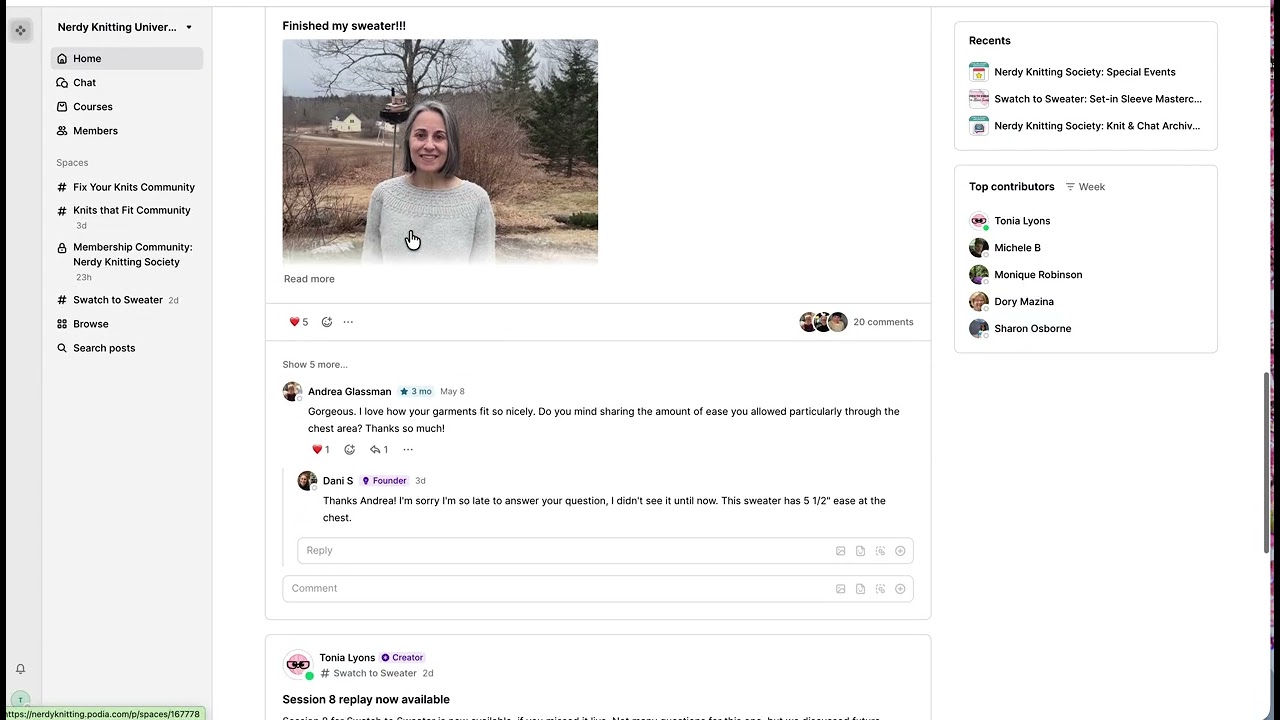
Here’s a short Video on how to navigate the Membership Area:
If you have trouble logging in, resetting your password, or watching a video, Podia (the platform that hosts the courses) has clear, step-by-step help guides that walk through the most common issues.
You can view Podia’s help guides here.
If you’re still stuck after that, you can send an email.
For any additional help please visit Podia’s FAQ page.
Watching Lessons
Yes. While watching a video, you can adjust the playback quality using the video player’s settings. Options may include things like Auto, 720p, or lower quality depending on your internet connection.
After you purchase, you’ll get an email with a link to your course. You can click that link anytime to sign in and watch the lessons.
Yes. You can return to your dashboard anytime and rewatch lessons as often as you like.
Yes. You can pause, rewind, and replay the videos whenever you need to.
No. Everything is watched online in your browser. You don’t need to install any software.
Yes. The courses work on computers, tablets, and phones.
No. There is not a separate mobile app.
You can access the courses through your web browser on a computer, tablet, or phone. Nothing needs to be downloaded.
The skills taught apply to most types of knitting and patterns, because they focus on understanding stitches rather than memorizing steps.
Each course includes guidance on how to get help if you’re stuck. You’ll also be shown how to troubleshoot many common issues on your own.
I can only help with questions regarding the knitting pattern. I cannot provide technical help about how to download, find your download, how to email/print/send, etc. Each device and computer is different and I cannot offer advice about your particular device, browser, or software.
If your question was not answered above send an email and I will help as best as I can.
For any additional help please visit Podia’s FAQ page.
Purchasing
Follow the steps below to apply a coupon code.
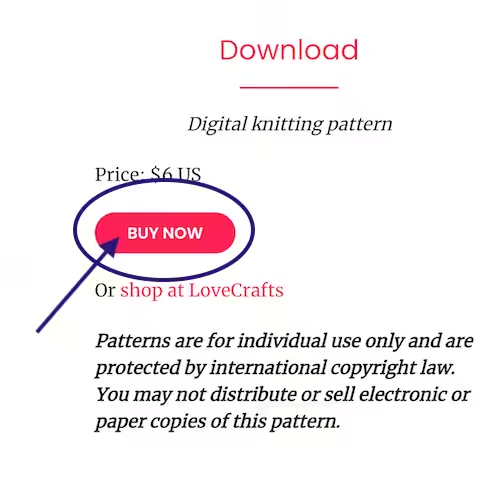
Click on the ‘Buy Now’ button and a shopping cart page will open.
Enter your email address (your download file will be delivered to this address so make sure it is correct).
Add the code to the ‘Discount Code’ box and click ‘Apply’ to automatically apply the discount to your purchase.
Choose your method of payment (credit card or PayPal) and enter the relevant information.
Accept the policies and finalize your purchase by clicking the purchase button.
Courses can be purchased securely online using standard payment methods.
Refund details are listed on each course page. Please read those before purchasing.
For any additional help please visit Podia’s FAQ page.